

Verified against the published script versions on TradingView as of November 2026. If a setting in your version differs, check the changelog.
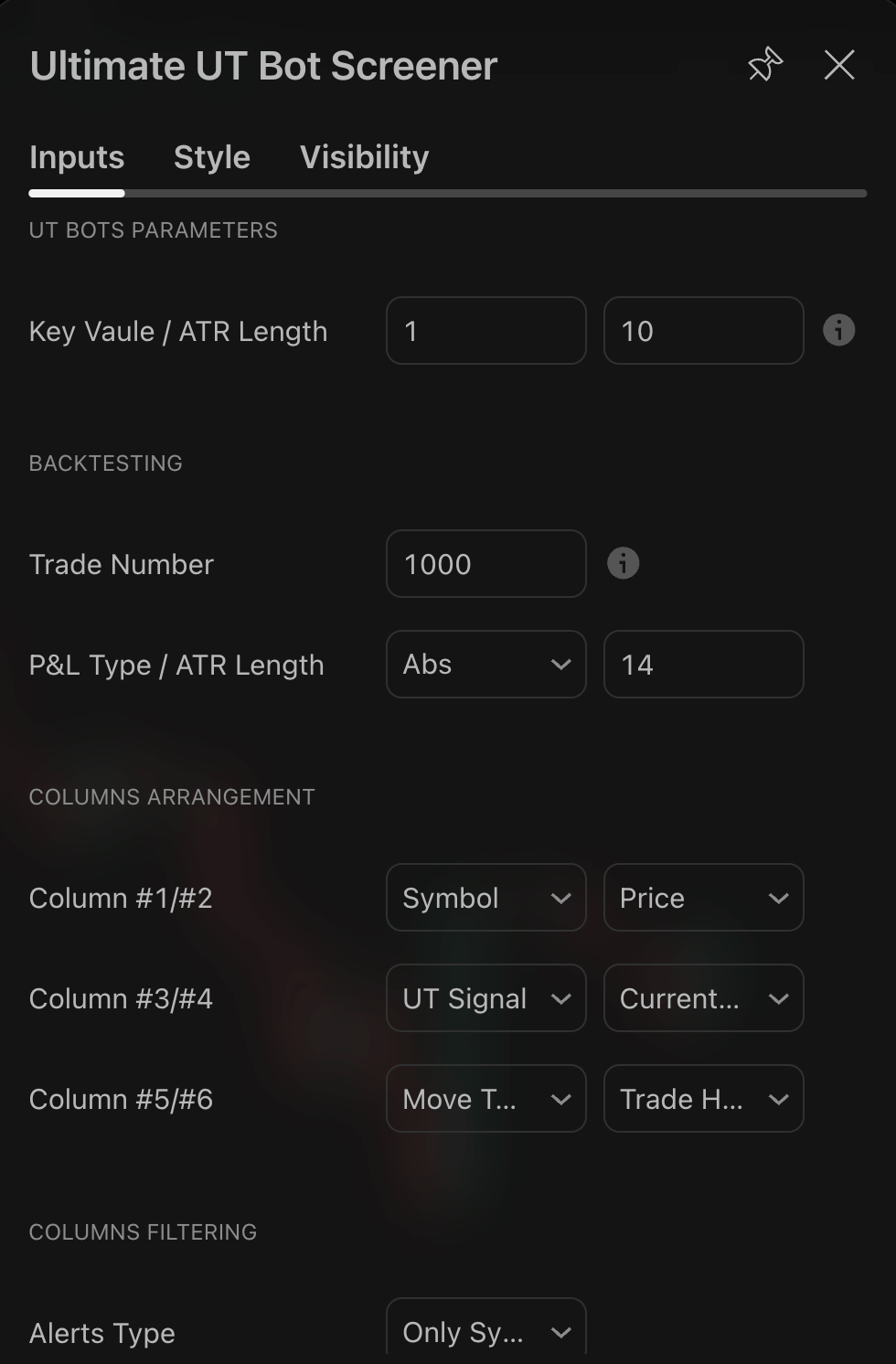
Ultimate UT Bot Screener Inputs tab with default values
UT BOTS Parameters
Backtesting
Columns Arrangement
Column definitions are in Reading the Table.
Columns Filtering
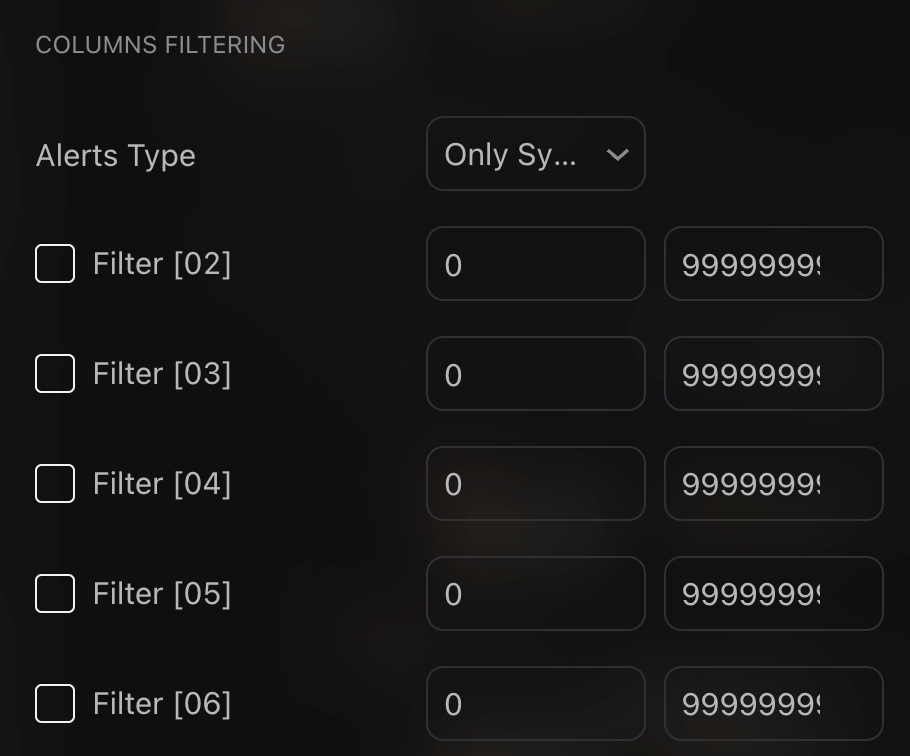
Columns Filtering: Alerts Type and a min/max range for columns 02–06
Sorting Columns
Table Setting
Symbols
40 symbol slots (s01–s40), each with an on/off checkbox. Slots 1–25 are on by default. The defaults are crypto pairs: replace them with the instruments you want to scan. The default list repeats a few pairs (for example XRPUSDT and BNBUSDT), so those appear twice in the table until you change them.Working with settings
- Save your configuration with Defaults → Save as default, or by saving the chart layout.
- Recreate alerts after changes. Alerts keep the settings they were created with.
- Change one thing at a time and compare results on the same chart. See ATR and Signal Sensitivity.