

UT Bot Pro’s own alert() messages cover entries only. To be alerted when a position is closed by the Exit Engine, use an Order fills alert.
They fire on the same final signals as the Buy/Sell labels on the chart, after the entry mode and HTF filter are applied.
Create a UT Bot Pro alert
1
Set up the chart
Open the symbol and timeframe to monitor, with UT Bot Pro configured as you want.
2
Open Create Alert
Click the Alert button or press Alt + A (Option + A on macOS).
3
Choose the condition
In Condition, select UT Bot Pro, then alert() function calls only for the script’s own messages, or Order fills only for a custom message.
4
Notifications
Choose notifications (app, pop-up, email, webhook) and click Create.
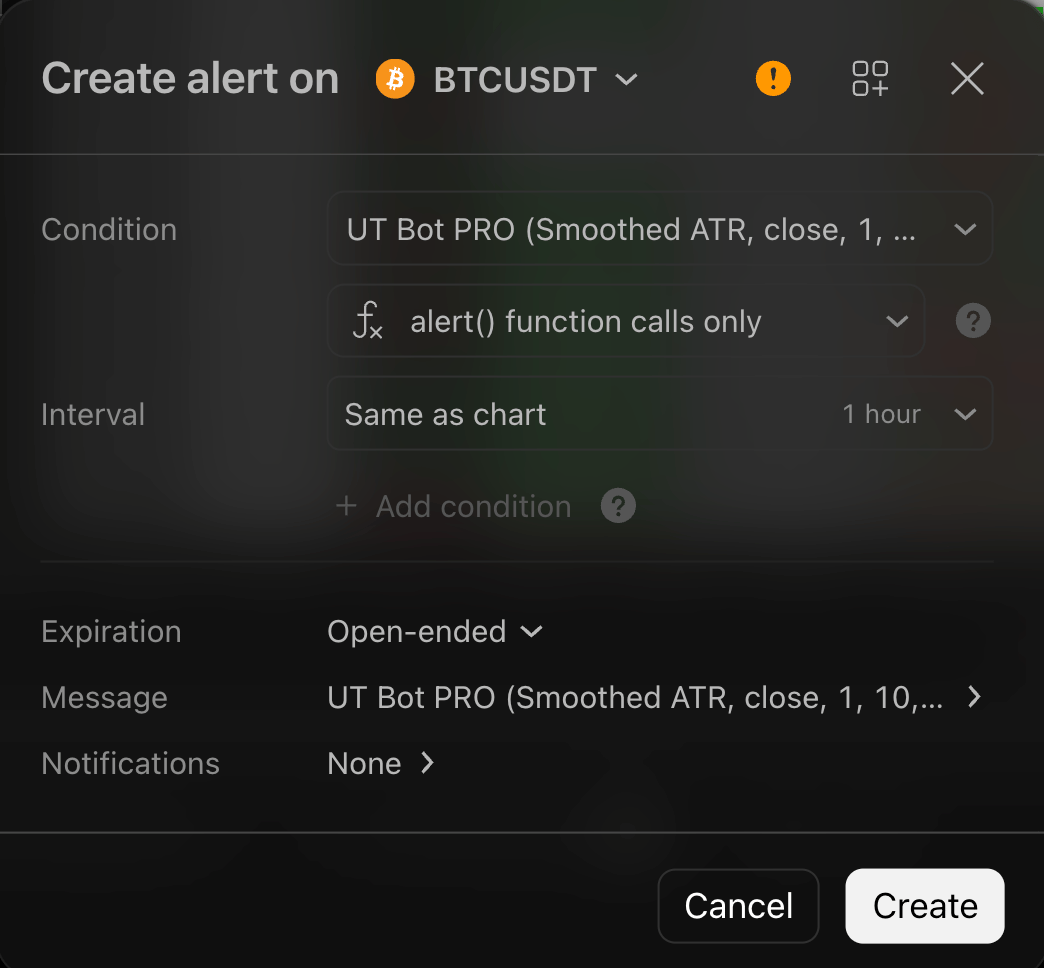
Create Alert: Condition set to UT Bot Pro and alert() function calls only
Custom messages with order fills
Order fill alerts let you write your own message using strategy placeholders:Automation with webhooks
General TradingView information. This section describes standard TradingView behavior, not a QuantNomad-specific feature. TradingView updates its interface regularly, so menu names and positions may differ slightly from what you see. When in doubt, check the TradingView Help Center.
1
Get a webhook URL
From the receiving service, such as a bot platform or your own server.
2
Pick the alert source
For a custom format, use UT Bot Pro order fill alerts with a JSON message like the one above.
3
Attach the webhook
In the alert’s Notifications tab, enable Webhook URL and paste the URL.
4
Test before going live
Send alerts to a test endpoint or paper-trading account first, and check each message is received and parsed correctly.